

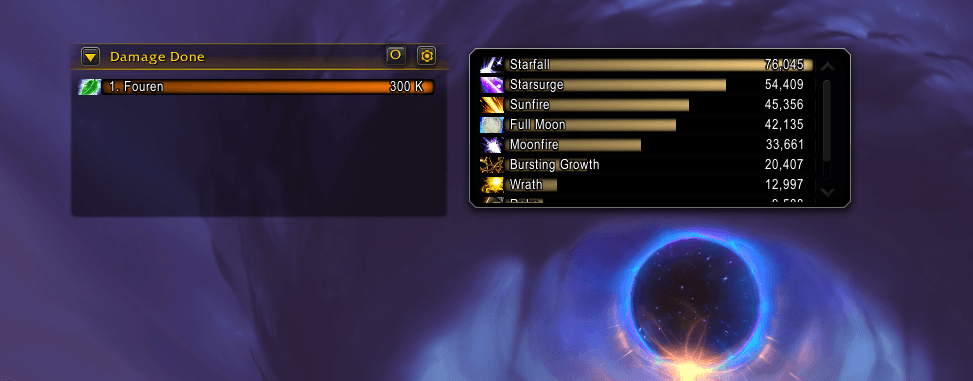
Damage Meter
How do I turn on the Damage Meter?
To enable this feature, you need to go to Options -> Gameplay Enhancements and check the box in the Damage Meter section.

Tracked indicators
The damage meter allows you to track not only the damage done, but also healing, interrupting abilities, damage received, and dispelling buffs. The meter also allows you to track damage that could have been avoided by using any defensive abilities, leaving the danger zone or interrupting the enemy's spell reading.
Damage

- Damage done
In this section, you can see the total amount of damage you have done.
- DPS
This section shows DPS (damage per second) data.
- Damage Taken
Here you can see how much damage each member of the group or raid has received.
- Avoidable damage Taken
It shows damage that could have been avoided, but it was received.
Healing

- *Healing Done
At this point, you can see the total number of health points restored.
- HPS.
Your HPS (health per second) is displayed here.
Actions

- Interrupts
This section displays all the interruptions of the opponent's spells.
- Dispels
Here you can see the number of buffs and frenzy effects removed from the enemy.
Counter display and additional functions
Movement and size
Initially, the counter appears in the upper-left corner of the screen and cannot be moved. To move the counter, you need to go to the section Options -> Edit Mode and check the box Damage Meter.

After that, you can move the window to any location, as well as control its size.
Additional windows
If you want to track several indicators at once, you can create an additional window for each of them. To do this, click on the gear in the damage counter and select Create New window
 The created windows can be freely moved and resized, regardless of the first window.
Battle Stages
You can track the performance both in total for the entire raid/dungeon, and in stages, analyzing each boss or group of mobs separately.
To do this, just click on the icon next to the gear in the counter and select the fight you need. And also adjust the interval of the current displayed indicator.

Details of the indicators
By clicking on the indicator line, you can see the source of the damage and its amount, which will allow you to learn more about which abilities were used for a particular action.

Reset Data
If you need to record data only within a single event, for example, a dungeon, then you can reset the metrics before starting. This can be done by clicking on the gear and selecting the appropriate item.
